¶ Getting Connected (DoD method)
The AMOS systems allow for getting connected in several different ways, but for those who need the system to be isolated from the internet, we highly suggest a direct connection to your computer via Ethernet.
The following steps will allow you to set up this method:
DISABLE YOUR WIFI ON YOUR COMPUTER BEFORE THE FOLLOWING STEPS
¶ Step 1- Open View Network Connections
Using your search bar, type “View Network Connections,” which is located within Control Panel, and open it up.
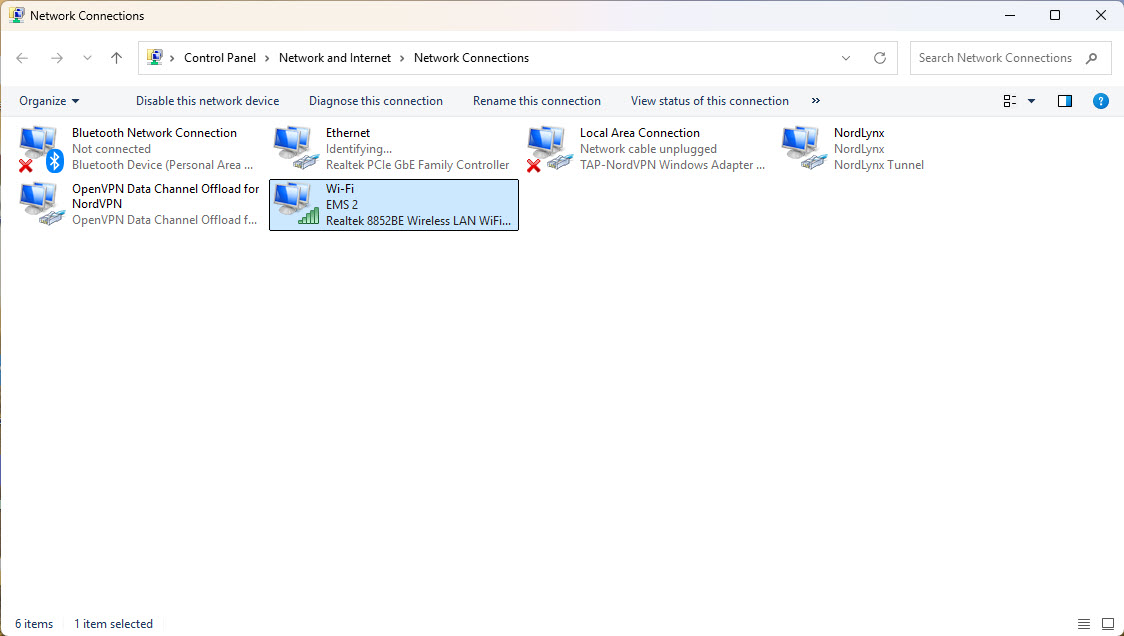
¶ Step 2- Locate The Ethernet Port
Locate your Ethernet port and right-click on it and find “Properties” and select it.
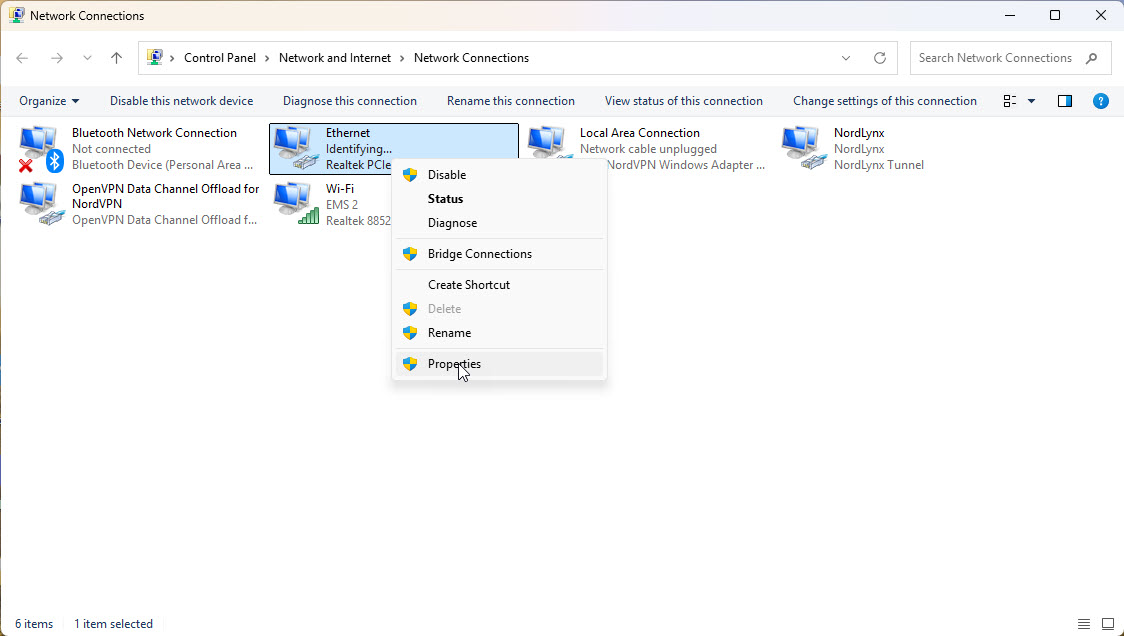
¶ Step 3- Selecting IPv4
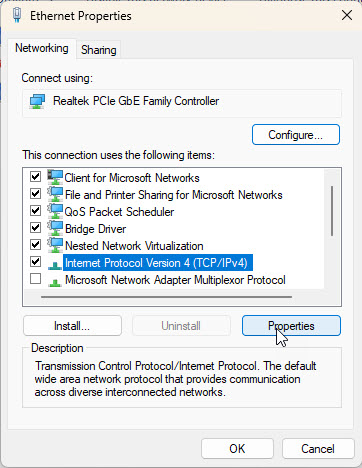
Once the properties tab opens, you will locate the IPv4 from the list.
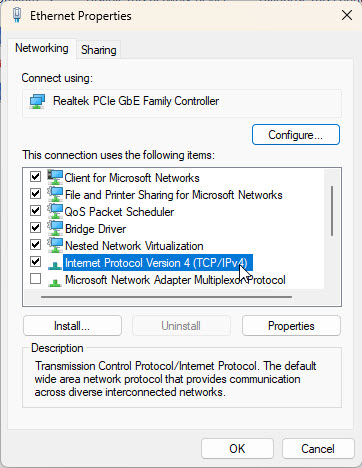
¶ Step 4- Selecting IPv4 Properties
Once you select IPv4, open up the “Properties”
¶ Step 5- Confirm Set to Automatic
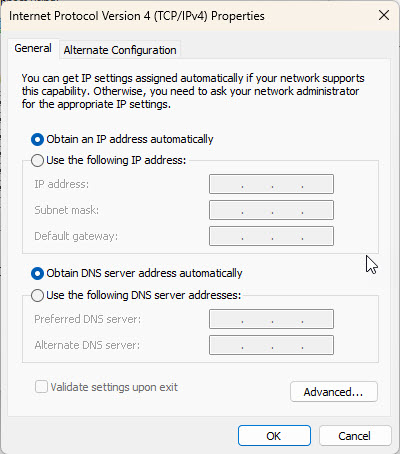
Once the “Properties” open, confirm “Obtain an IP address automatically” is selected. If this process has never been done, the rest of the info should be blank. Once confirmed, you can move back to the ““View Network Connections” page by closing all tabs pertaining to the Ethernet.
¶ Step 6- Locate the WiFi Port
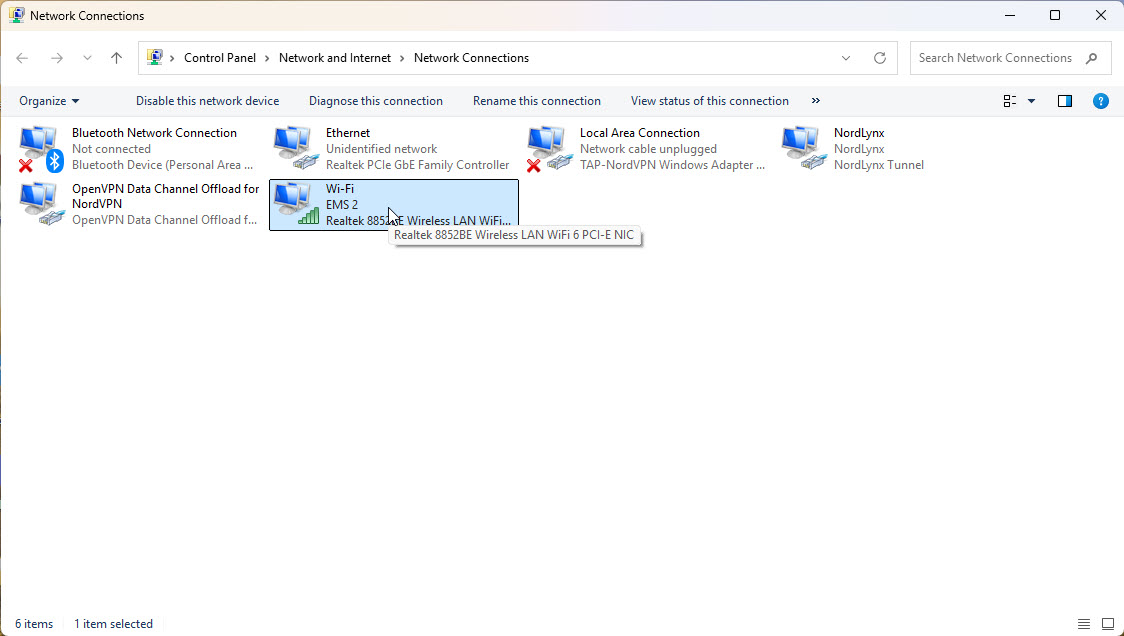
Now that you are back at the “View Network Connections”, you should be able to locate our WiFi port.
¶ Step 7- Select WiFi Properties
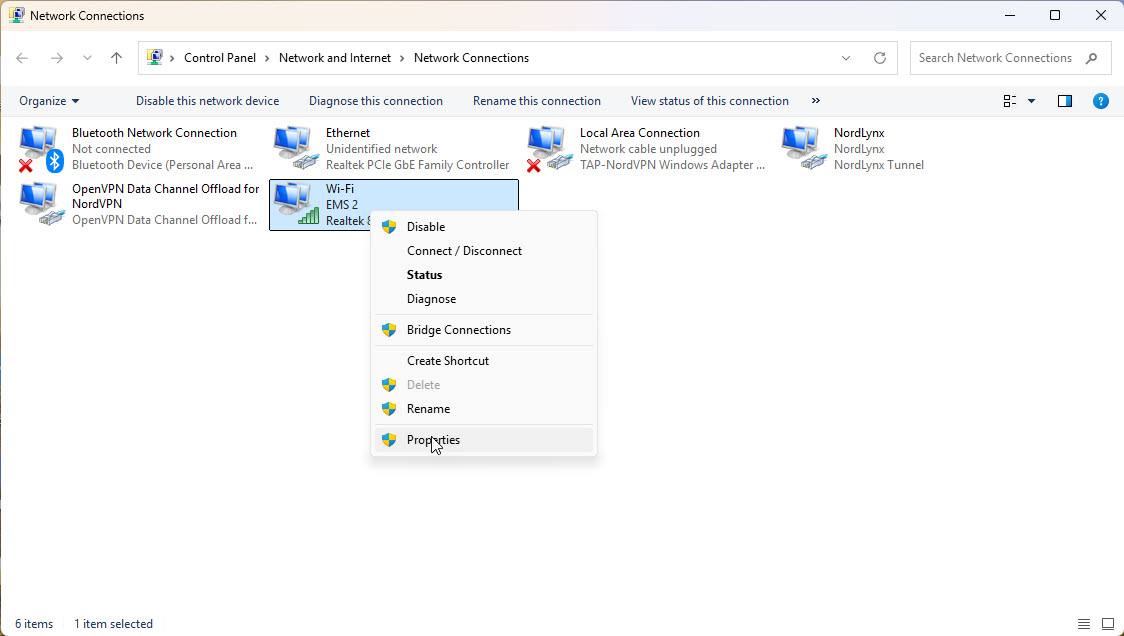
Right-click on the WiFi port and select the “Properties” tab from the drop-down.
¶ Step 8- Select the Sharing tab
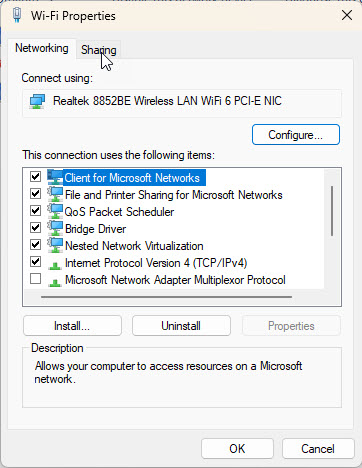
At the top of the “Properties” window, select the “Sharing” tab.
¶ Step 9- Make Network Adjustments
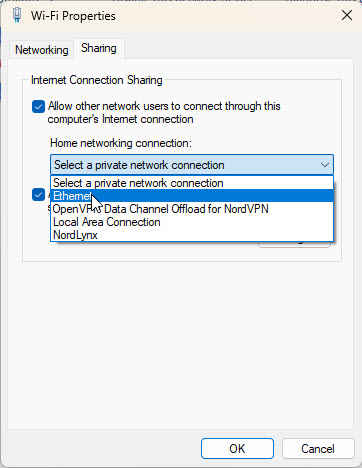
In the Sharing tab, ensure the “Allow other network users to connect through this computer's internet connection.”
You will then select Ethernet from the drop-down.
Next, select “OK”
¶ Step 10- Return to View Network Connections
Close out all WiFi windows and return to the View Network Connections window.
¶ Step 11- Relocate The Ethernet Port
Locate your Ethernet port and right-click on it and find “Properties” and select it.
¶ Step 12-Selecting IPv4 Propertie
Once you select IPv4, open up the “Properties”
¶ Step 13- Check IP Assignment
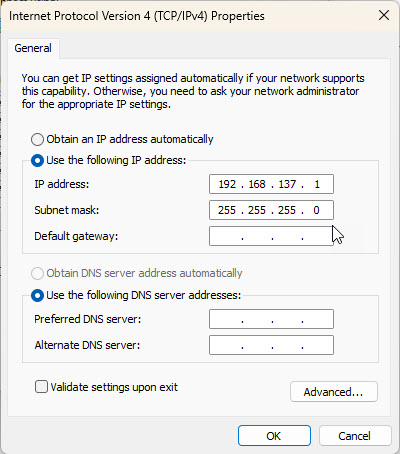
Once open, you should see that your network has automatically assigned your system an Ethernet IP and Subnet Mask
¶ Step 14- Connect Your Ethernet
Connect your AMOS directly to your computer with your Ethernet. Do not connect your system to a switch or router.
¶ Step 15- Move to Units Screen
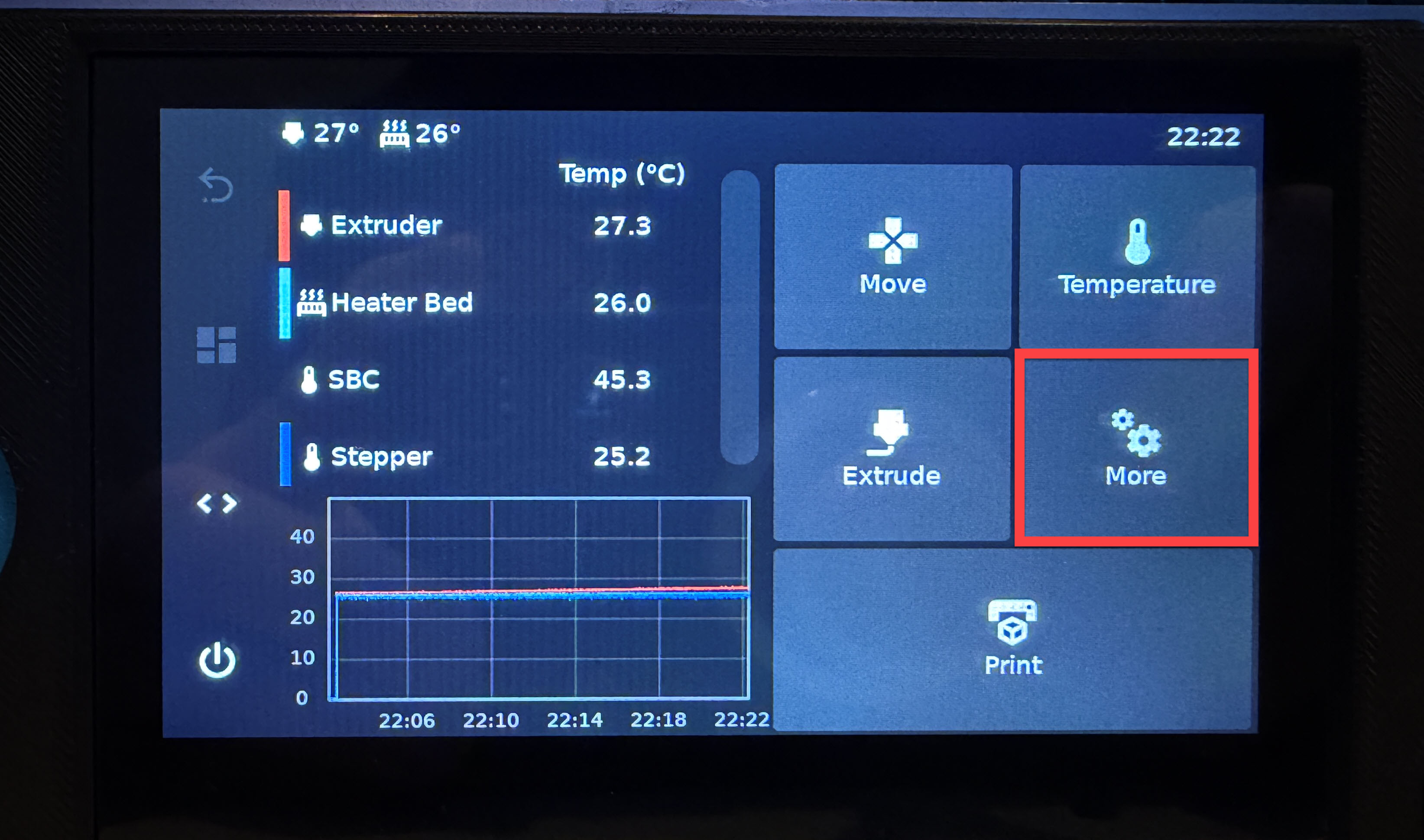
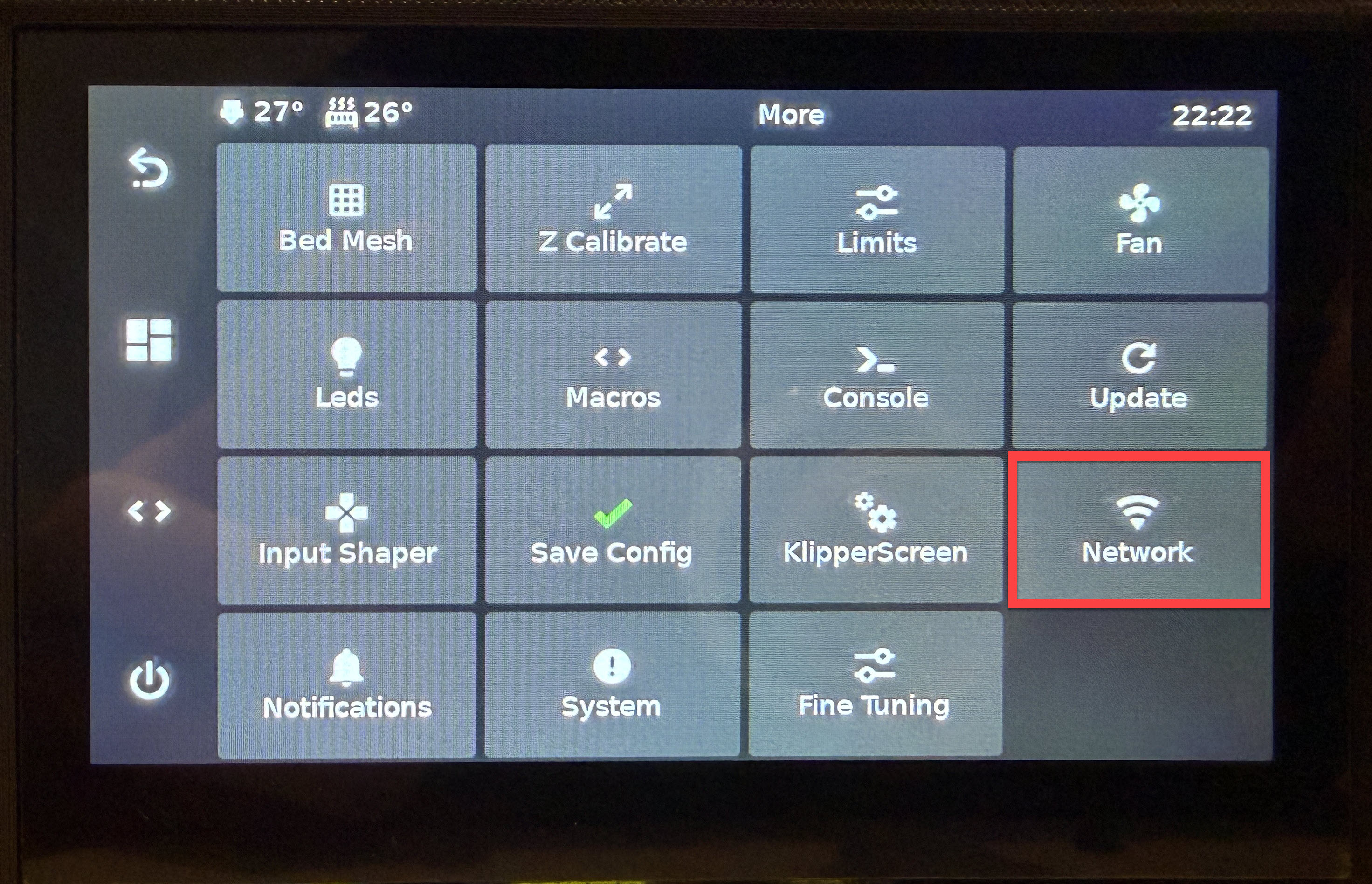
Move to your unit and select “More” on your main screen
¶ Step 16- Select Network
Find and select the “Network” button.
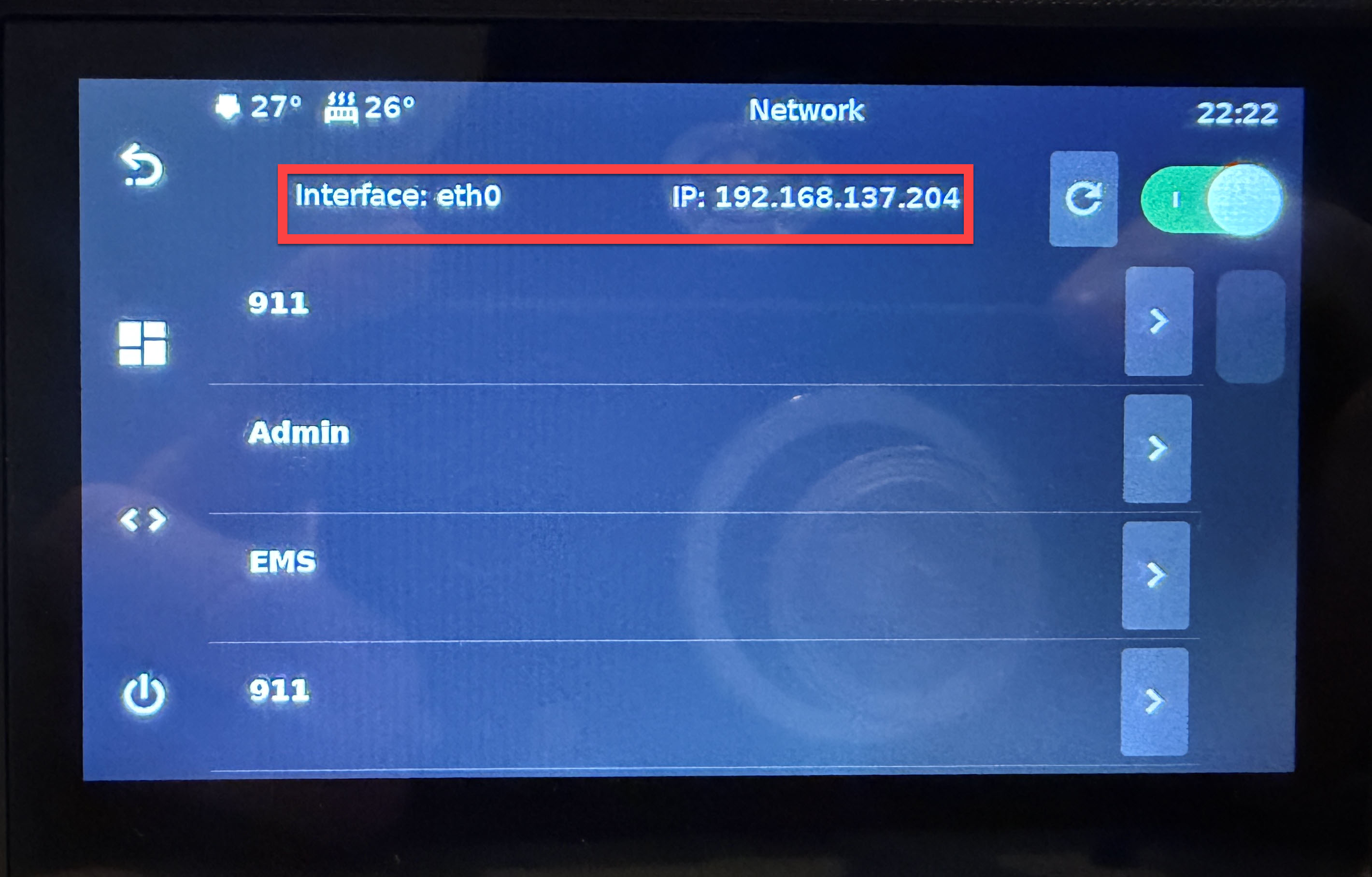
¶ Step 17- Verify and Locate Your IP
Ensure that the network interface is “eth0” and an IP address is provided. You will then use this to open the web interface or use your “AMOS(Unit#).local” to open the interface.